
Share files and folders
Share with other users or with a public link, with a password, an expiry date and view, edit or upload-only access.
You can share a file or a folder with other users of your server, or with anyone through a public link. Open the details panel of the item and choose Share.
Share with a user
Enter the user name and choose the access:
| Access | The other person can |
|---|---|
| View only | Open and download |
| Can edit | Open, change, add and delete files in a shared folder |
The shared folder appears in the other person's file list under its name. They can rename it for themselves, or delete it from their list, which ends the share for them. You see and manage the share under Shares.
Rostdav has no resharing: someone who receives a share cannot pass it on.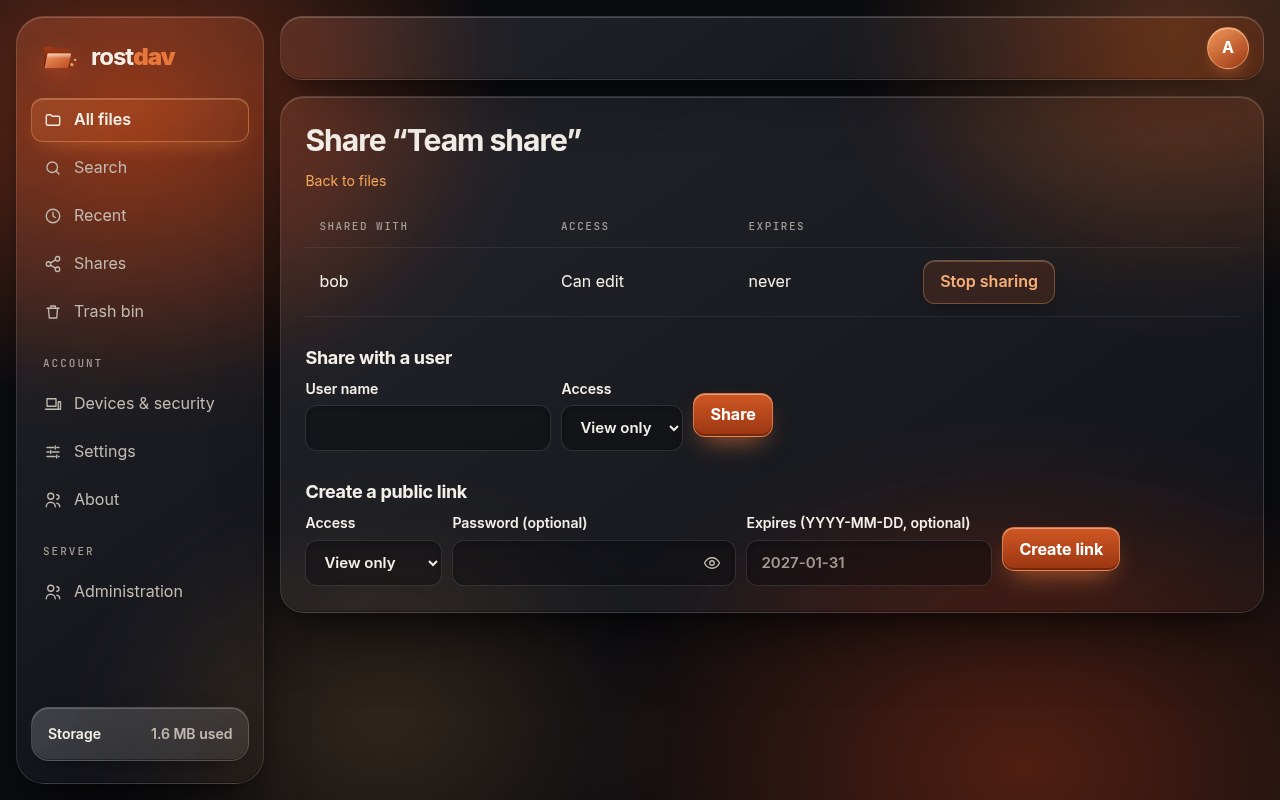
Public link
Choose Create a public link. You can set:
- a password (optional; the link then asks for it),
- an expiry date (optional,
YYYY-MM-DD), - the access: View only, Can edit, or Upload only (a "file drop": visitors can add files but not see the folder's contents).
Send the link to the people you want. Anyone with the link, and the password if you set one, can open it without an account: they see a simple page with the files, a download button, and (for edit and upload-only links) an upload form.
To stop, open Shares and choose Stop sharing on the link. The address stops working at once.
The Shares page
Shares has two lists: shared by me (with the recipient or the link address, the access, the expiry and a Stop sharing button) and shared with me (with the owner and the access).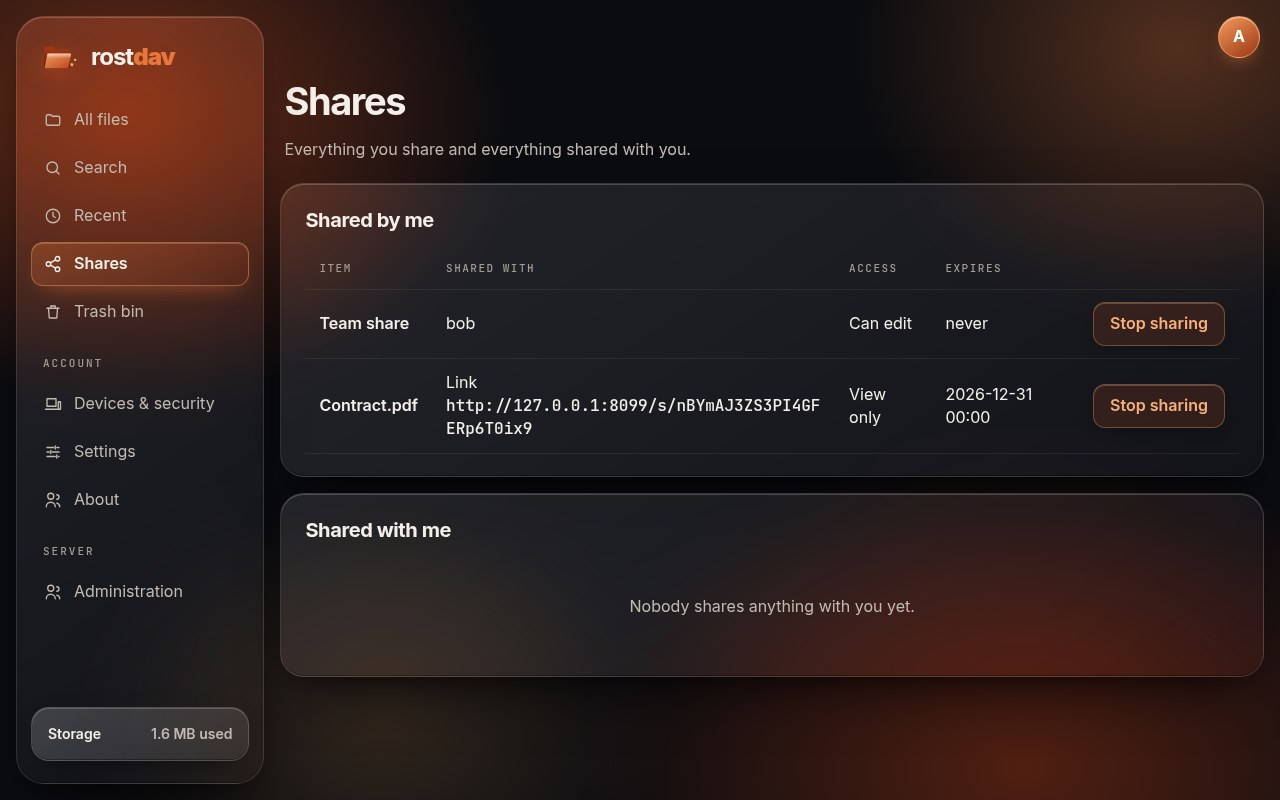
Good to know
- A share follows the folder when you move it, and ends when you delete it.
- Space used by files in a shared folder counts toward the owner's quota.
- You cannot move files between your own area and a share you received. Copy them instead.