Getting started
Sign in to the Rostdav web interface, find your way around and set language and theme.
What you need
- The address of your server, for example
https://files.example.org. Your administrator tells you. - Your user name and password. An administrator creates your account; there is no public sign-up.
Sign in
Open the address in a browser. Enter your user name and password and choose Sign in. If you turned on two-factor authentication, a second step asks for the code from your authenticator app (or a recovery code); see account and security.
After ten failed sign-ins within 15 minutes, from one address or for one user name, further attempts are blocked until that time is over (the server answers "too many attempts"). Wrong second-factor codes are limited to five in 15 minutes. Wait, or ask your administrator to lift the block.
Find your way around
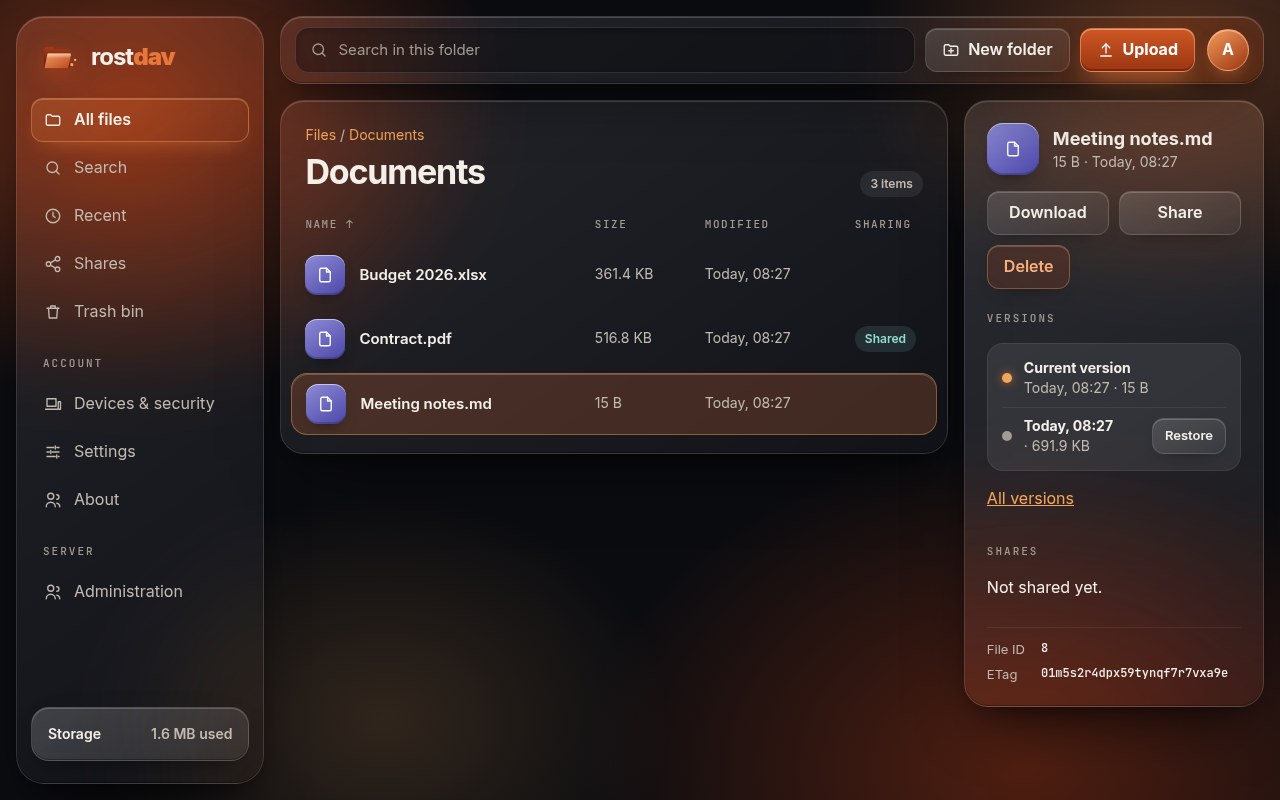
The navigation on the left has:
| Entry | What it shows |
|---|---|
| All files | Your files and folders, plus folders others shared with you |
| Recent | The 100 files you changed last, each linking to its folder |
| Shares | Everything you share, and everything shared with you |
| Trash bin | Deleted files that can still be restored |
| Devices & security | Phones and computers connected to your account, and the browsers you are signed in with |
| Settings | Profile, picture, language, theme, password, two-factor, data export |
| About | Version, licence and the release notes |
| Administration | Only for administrators |
The storage meter at the bottom of the navigation shows how much of your quota you use. The round icon at the top right opens your account menu, where you sign out.
Language and theme
Under Settings you choose the language (English, German, or Same as browser) and the theme (light, dark, or the system setting). The choice applies to your account on every browser.
Next
- Connect the Nextcloud apps on your phone or computer.
- Work with files in the browser.